Change your Display Name on Zoom
 //
//
We use Zoom for our online meetings as anyone can make an account for free.
Before you join one of our meetings, we ask that the Display Name on your account matches your name. This helps us by making it clear who is on the meeting. How you change your name depends on what you are using Zoom on:
- Changing your Zoom Display Name on a mobile phone or tablet
- Changing your Zoom Display Name on laptop or PC
Change your Zoom Display Name on a mobile phone or tablet
- Open the Zoom app. If you don’t already have Zoom on your device, you can download it from the Google Play Store or Apple App Store.

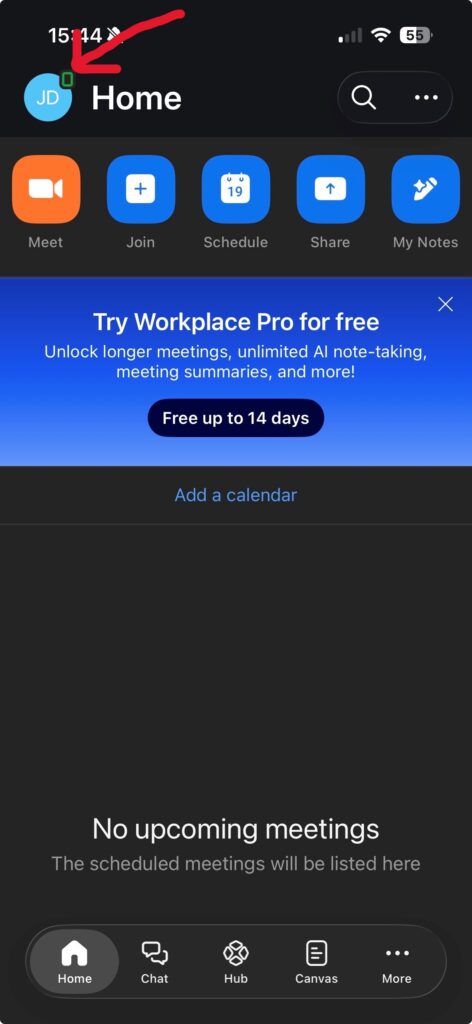
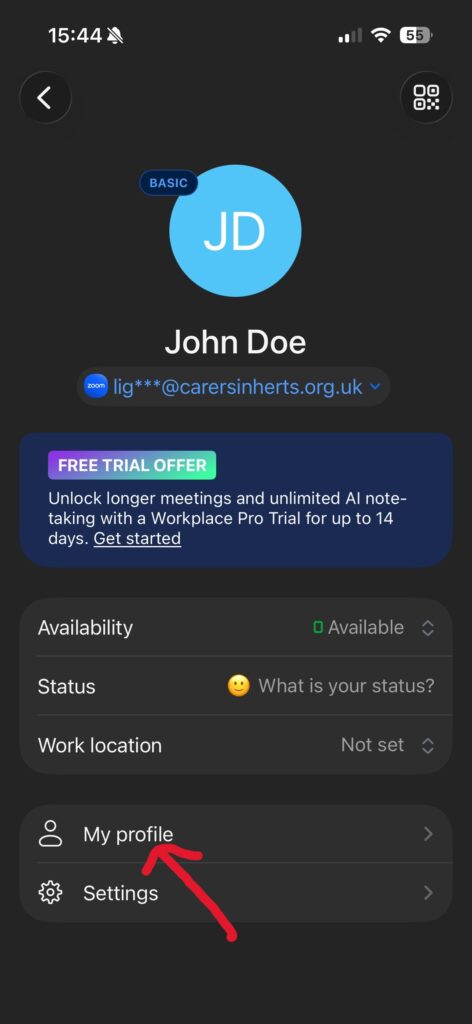
- Press your profile picture or initials in the top left to open the Settings page.
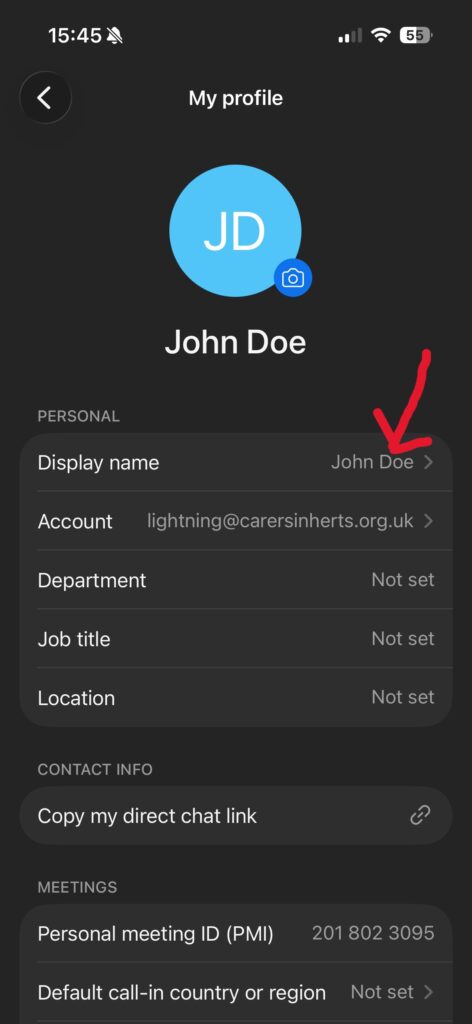
- Press ‘My Profile’.
- Press the Display Name box.
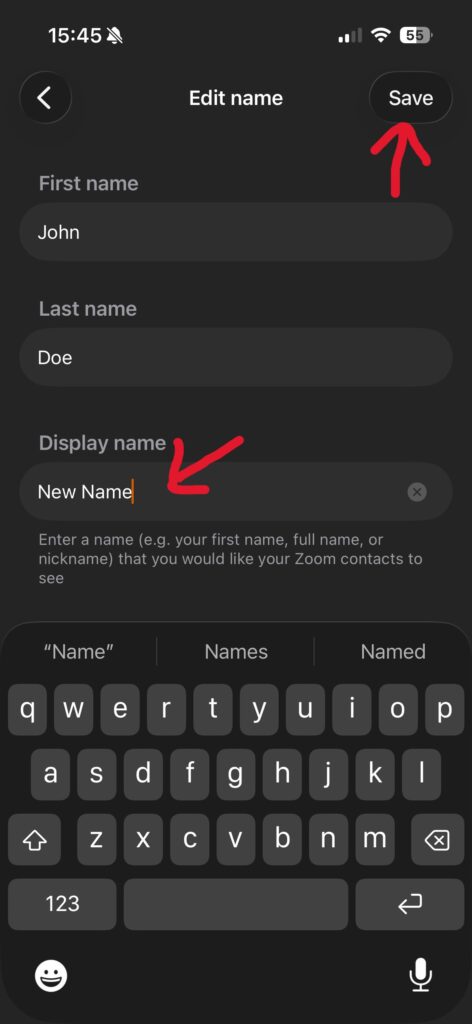
- Press the Display Name box to show the keyboard and type the correct name. Then press Save.

Change your Zoom Display Name on a PC or laptop
- Open the Zoom programme on your computer. If you don’t have it already, download it from the Zoom website.
- Enter your email address and password to sign in.
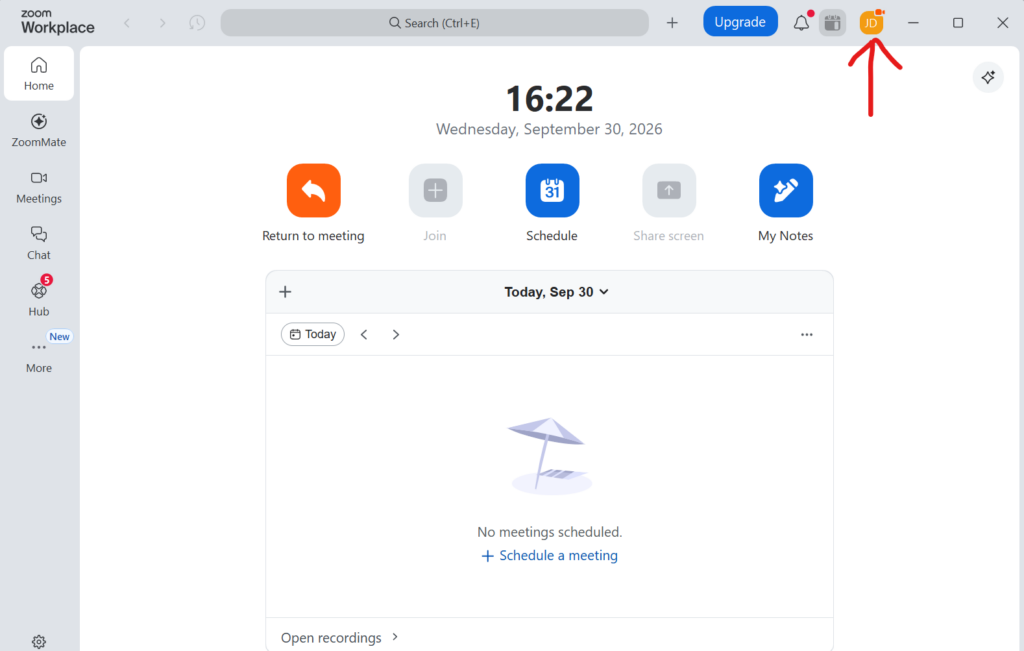
- Click on your initials or profile picture in the top right of the homepage.
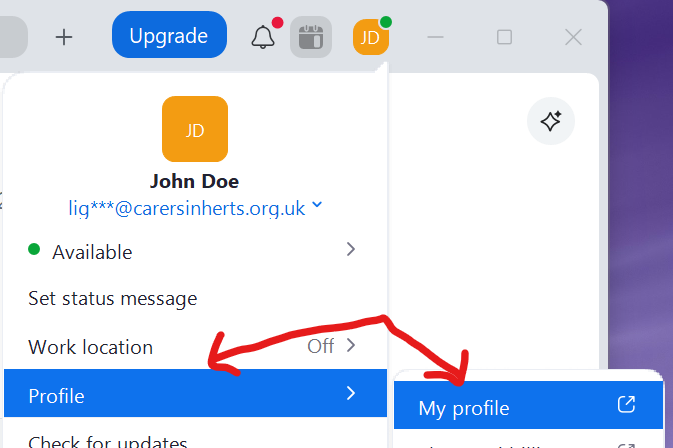
- Hover over Profile on the menu that shows up, then click My Profile. This will take you to your profile on the Zoom website.
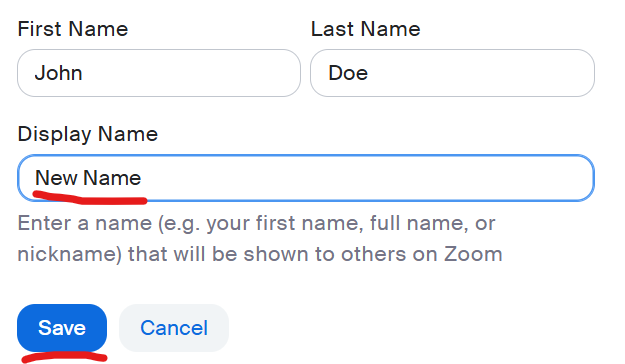
- The smaller, grey text under your name is what your Display Name is currently set as. If this is not your name, click Edit to change it.
- Type your name in the Display Name box and click Save.